“Genuinely, one of the most overlooked characteristics in the Xbox ecosystem”
- by Craig Reid
- Thu, 1pm
The lengthy anticipation for Grand Theft Auto 6 has finally concluded, with gamers converging on their Xbox consoles to launch the newest criminal adventure set in Vice City.
GTA 6 was released today on PS5 and Xbox Series X|S consoles, with no immediate intentions to bring the game to PC. Nonetheless, Xbox Remote Play seems to be receiving significant acclaim for its adaptability, responsiveness, and minimal delay while streaming GTA 6 via the Xbox app.
If you’re not acquainted with this streaming capability, Xbox Remote Play permits players to stream their console to various smart devices using the Xbox app or the Xbox Play page on mobile devices. It proves especially beneficial when access to the television is constrained or when players are situated in a separate room from their Xbox console.
A multitude of gamers confessed to unofficially taking the day off work to fit in some gameplay with GTA 6. Therefore, if you’re eager to indulge in a bit of criminal activity between Teams meetings, here’s a useful guide on how to set up your Leonida journey through Xbox Remote Play:
Xbox Remote Play – Here’s How To Start Playing
- From your Xbox console, navigate to Profile & system > Settings > Devices & connections > Remote features.
- Ensure the Enable remote features option is checked.
- On mobile, visit xbox.com/play, select the console you wish to connect to, and then tap Remote play on this device.
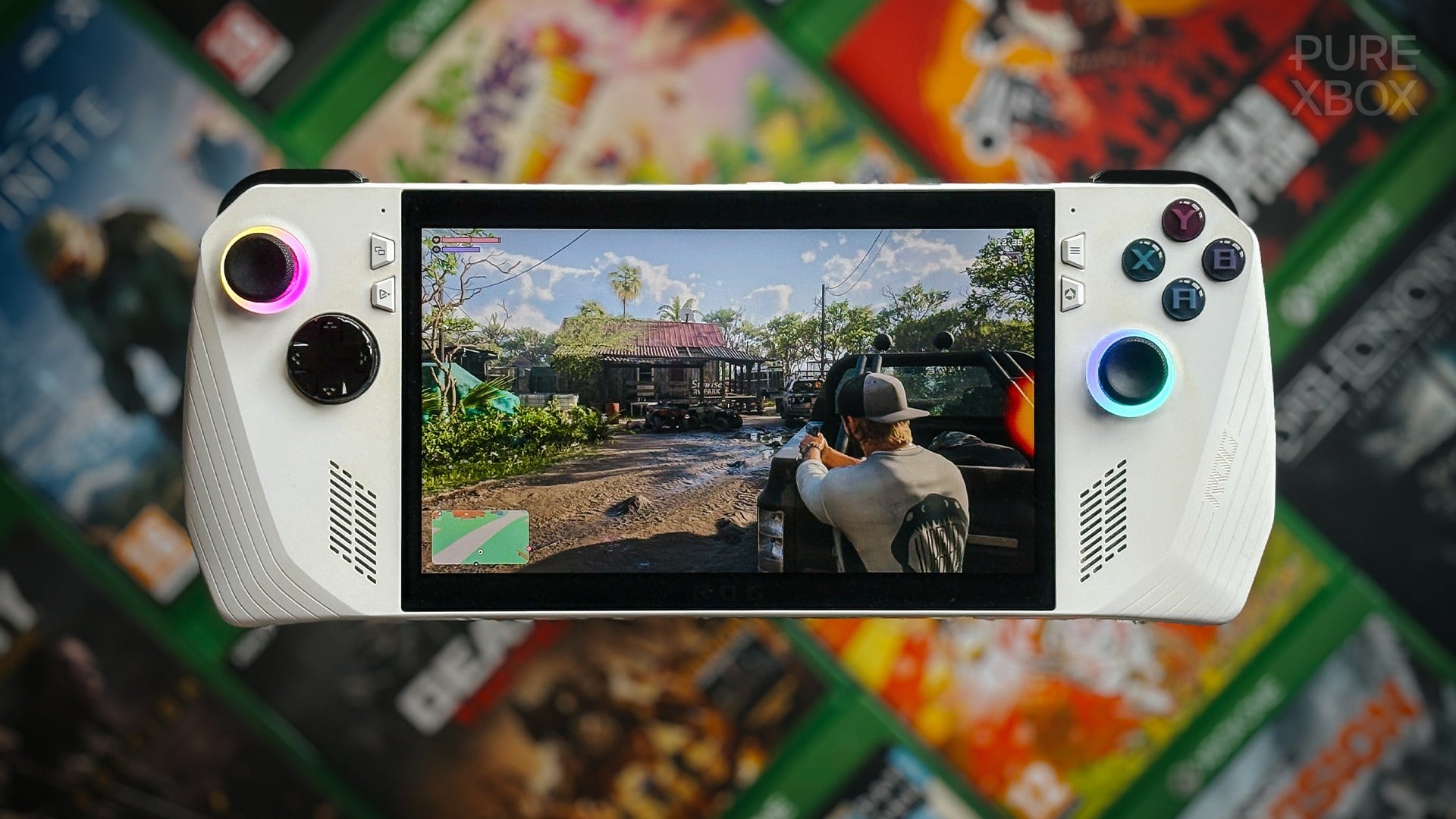
- On PC/ROG Ally, open the Xbox PC app, click on your profile icon at the top right. Go to Accessories & Remote Play, and choose the console you’d like to remote play from.
PX’ers, have you been utilizing Xbox Remote Play to its fullest?